

CPU thermal monitoring
Idle and load readings against your chip's rated ceiling, with throttle-point flags. The report separates normal boost behavior from sustained heat that can shorten component life.
Component health & thermal monitoring
CoolCore is a step-by-step health check for CPUs, GPUs, and cooling systems — built to catch overheating early and keep every component running at a safe temperature.
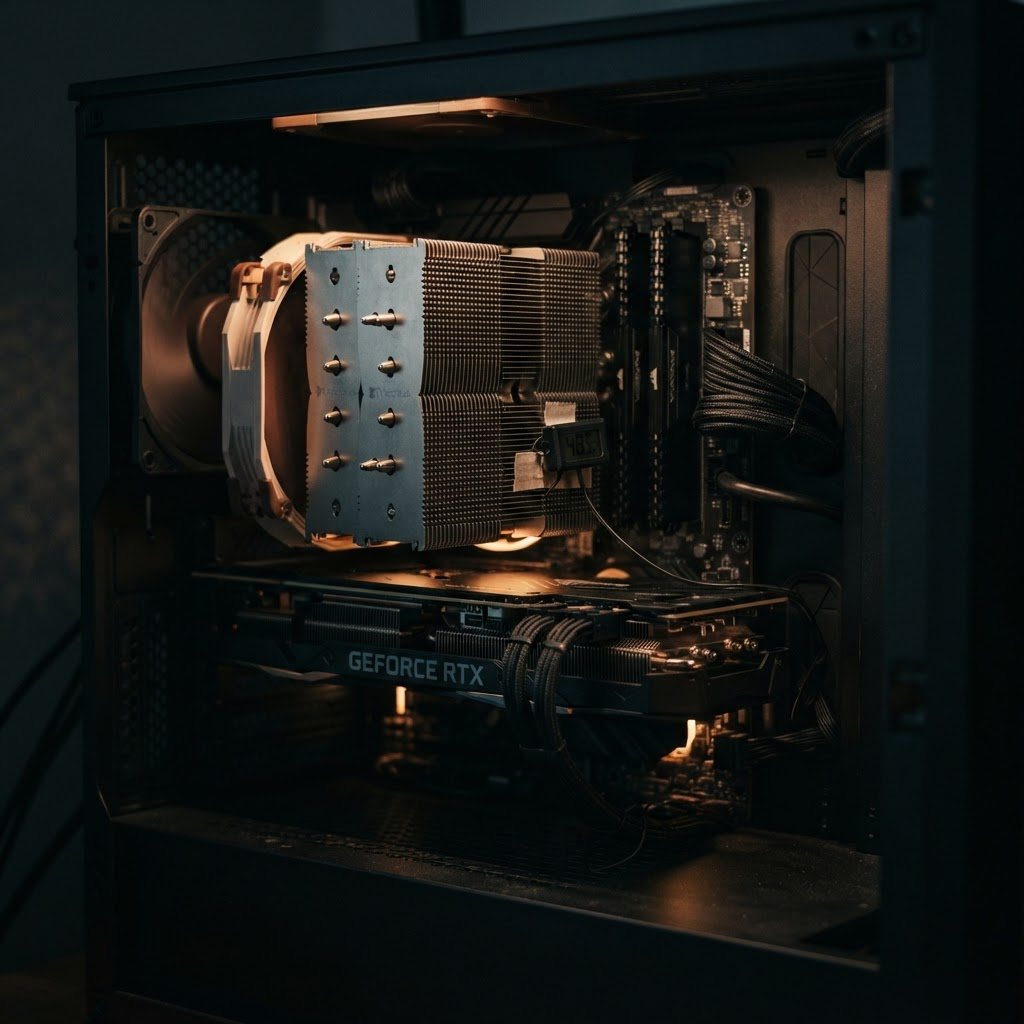
Dust buildup, worn thermal paste, and clogged fans raise operating temperatures gradually — long before a crash makes the problem obvious. CoolCore turns that slow decline into something you can measure, track, and fix on a schedule, instead of finding out the hard way.
10–15°C
Typical drop after a full dust and repaste service
6 mo
Recommended interval between full health checks
90%
Of thermal shutdowns trace back to airflow, not the chip
3 yr
Average lifespan of factory-applied thermal paste
A complete pass through the parts that generate heat, move air, and report the numbers you rely on. Each result is paired with context, not just a color-coded warning.
Idle and load readings against your chip's rated ceiling, with throttle-point flags. The report separates normal boost behavior from sustained heat that can shorten component life.

Core and hotspot deltas reveal a dying fan or dried-out pad long before artifacting starts. You get the gap, the load condition, and a practical next step for your exact pattern.

RPM curves, bearing wear, and dead-zone detection cover case fans, coolers, and AIO pumps. We compare the sound and speed profile so replacement decisions are based on evidence.

Intake and exhaust balance, filter condition, and heatsink fin blockage are assessed together. That combination finds the airflow restriction a single temperature reading cannot explain.

Cross-checks onboard sensors against an external probe at the intake and heatsink. The report notes any offset so you do not tune a fan curve around a misleading number.

We assess paste age, spread, and visible pump-out around the contact surface. You get a clear repaste-or-wait recommendation tied to your load temperatures and service history.
Log idle and full-load temperatures across CPU, GPU, VRM, and chipset over a 20-minute stress pass.
Compare readings against safe ceilings and airflow expectations to isolate the actual bottleneck.
Clean, repaste, or reseat the parts the diagnosis flagged — nothing that's already healthy.
Re-run the same stress pass and confirm the drop before calling the job done.
CoolCore isn't a temperature app that just shows a number. It's a structured checklist that tells you what a reading means and what to do about it.
 Component-specific safe ranges, not generic thresholdsLoad-testing sequence built into every checkPlain-language fix recommendations, ranked by impactBefore/after verification so you know the fix worked
Everything needed to run the check and act on it, sold separately or bundled.

High-conductivity paste, cleaning wipes, and applicator card for a careful CPU or GPU repaste. The kit is sized for one complete service and includes a simple cleanup sequence.
$24
Inquire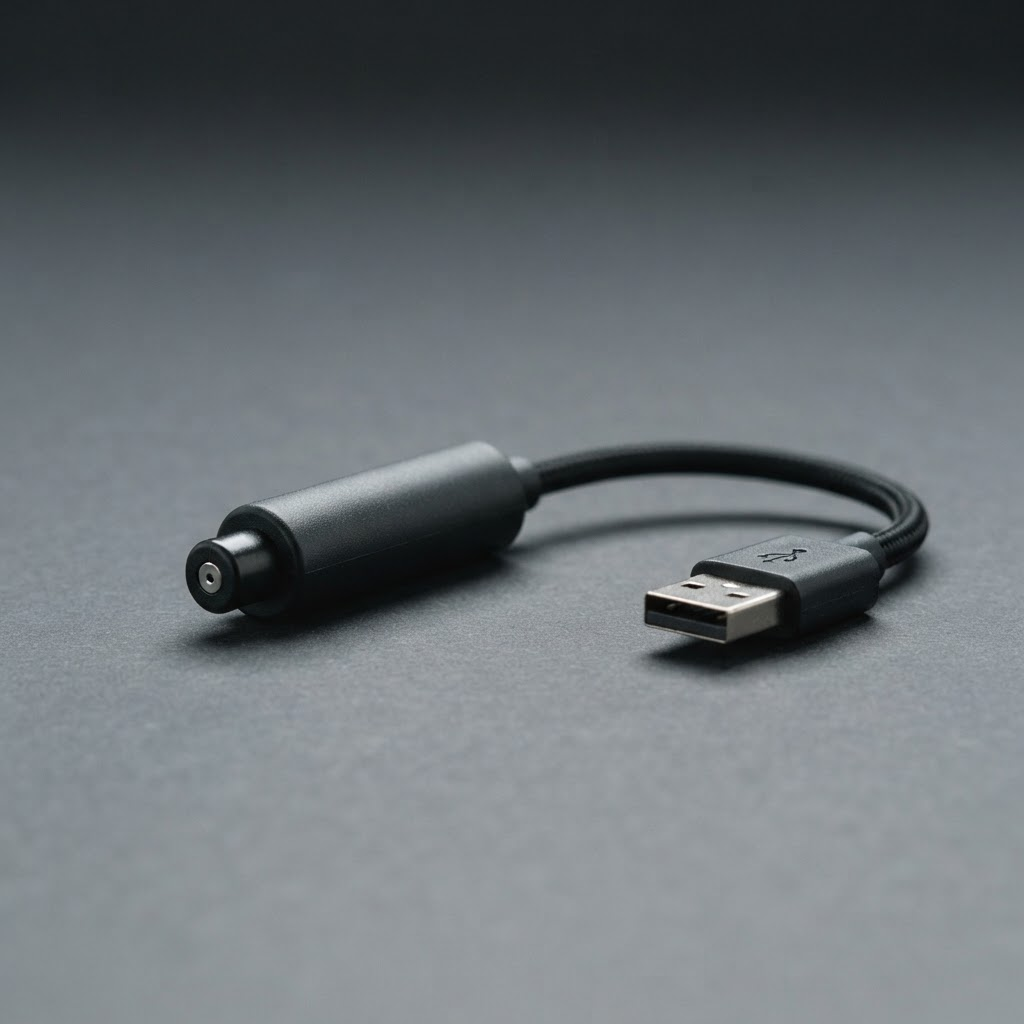
Independent temperature reference for calibrating onboard sensors and checking suspicious readings. Place it beside the heatsink or intake to understand the difference between chip heat and room airflow.
$39
Inquire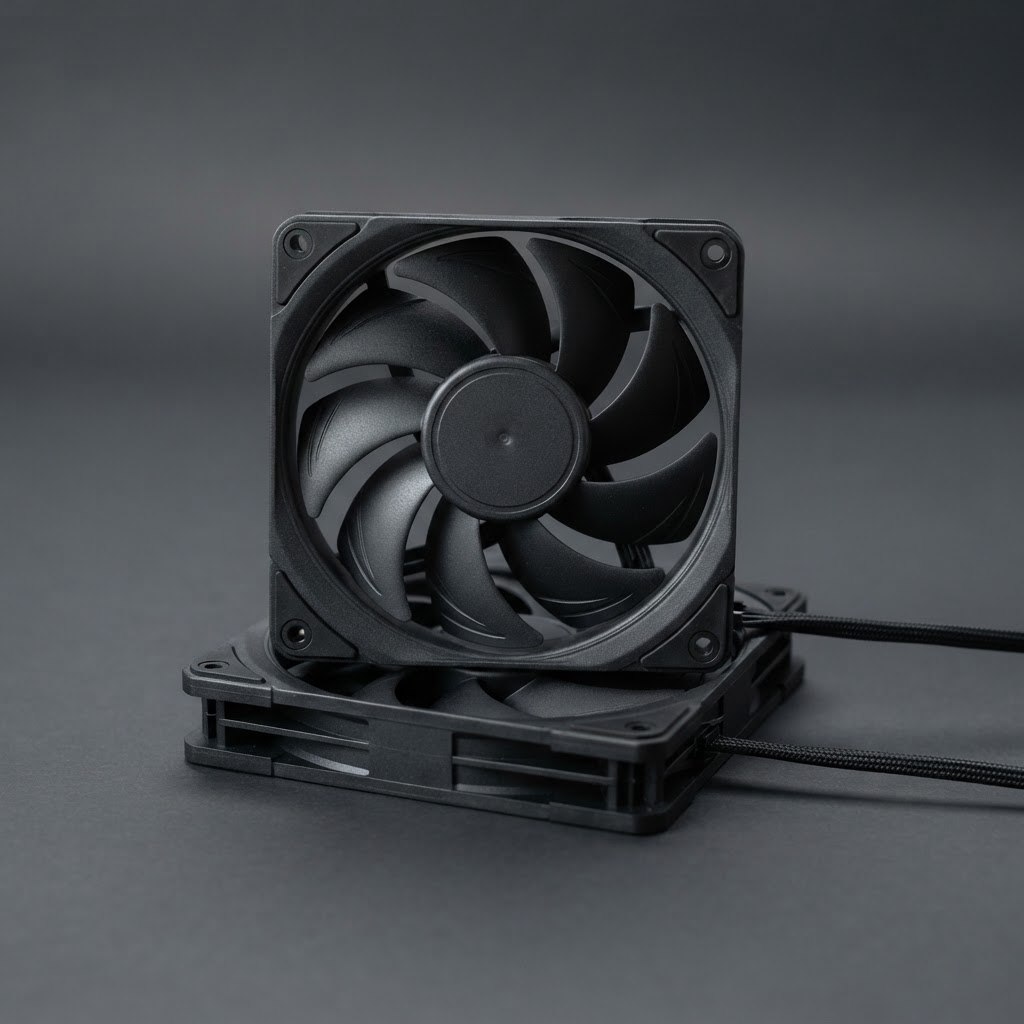
Matched intake and exhaust 120mm fans for balanced case pressure without adding a harsh mechanical hum. Use the pair to replace a noisy bearing or correct a case that is starving for fresh air.
$58
Inquire
Anti-static brush, duster, and replacement mesh filters for a full clean pass. It gives you the tools to clear fins safely, refresh the intake, and keep the next inspection consistent.
$19
InquireField notes
A three-year-old editing rig had started shutting down mid-render. Sensors alone pointed at the GPU, but a full check showed intake filters caked with dust, starving every component of fresh air. A clean, a repaste, and a filter swap brought load temperatures down 14°C with no parts replaced.
Read more about our approach →Before a check
After a check
"I assumed my GPU was failing. It was a fan bearing worth twelve dollars to replace."
"The before/after readings made the repaste worth it — an 11°C drop under load, confirmed on the spot."
"Finally a checklist that explains what each temperature actually means instead of just showing a number."
$49
A single full diagnostic pass on one system, with a written summary.
$99
Full check plus service — clean, repaste, and fan calibration included.
Custom
Scheduled checks across multiple workstations, with a shared service log.
It depends on the component. Most modern CPUs are rated safe up to roughly 90–100°C under sustained load, but performance and longevity are better protected by staying under 85°C. GPUs vary by model; the check compares your readings against your specific hardware's rated ceiling rather than one fixed number.
Every six months for a typical home setup, or every three months in dusty environments or heavy workstation use. A quick sensor check is worth doing any time you notice louder fans or new instability.
Sensor monitoring and load testing can be done with the case closed. Dust, paste, and fan inspection require opening the case, which is included in the Pro Diagnostic and Business Fleet plans.
Yes. The same diagnostic sequence applies, though service options are more limited on sealed laptop chassis.
That's a good outcome — you leave with a written baseline reading to compare against in the future, which is useful on its own.
Guide
Why the gap between the two numbers matters more than either one alone.
Maintenance
Three readings that reliably point to dried-out paste instead of a failing fan.
Airflow
A simple fan-count rule that prevents most dust-related overheating.
A repeatable routine
Healthy temperatures are not a one-time achievement. Use the same checkpoints throughout the year so small changes become visible before they become expensive failures.
Spend five minutes checking idle temperature, fan noise, and dust around the intakes. Record anything that feels different from your normal baseline.
Every three months, inspect filters, clear the front panel, and confirm that exhaust air is moving freely. A restricted filter can undo an otherwise capable cooling system.
Run the full CPU and GPU load sequence, compare hotspot deltas, and review fan curves. This is the right interval for most home and studio systems.
Open the case for a deeper inspection of paste, pads, bearings, and cable clearance. Finish with a fresh written baseline so the next year has a reference point.
One method, many setups
Cooling problems show up differently in a gaming tower, a quiet workstation, and a compact laptop. The check keeps the same evidence-first sequence while adapting the thresholds and service recommendations to the machine in front of us.
Why CoolCore
The goal is not to replace parts. The goal is to understand the thermal story, make the smallest effective intervention, and leave you with proof that it worked.

We capture what normal looks like before recommending a change. That protects you from chasing harmless sensor variation or replacing healthy hardware.
Idle temperatures can look perfect while a render or game pushes the system past its comfort zone. Every meaningful conclusion is tested where the heat actually appears.

Your report ends with a useful date, not a vague reminder. You will know what to watch, when to return, and which change would matter most if the trend continues.
Reach out with your system's specs and what you're seeing, and we'll recommend the right plan.
 (415) 555-0182
 [email protected]
 2478 Technology Drive, Suite 120, San Jose, CA 95110


